Cybersecurity Checklist for Small Businesses with Remote Workers

Most small businesses didn't set out to become distributed teams. It happened — a hire in another city, a lease that ended, a few people who simply work better from home two days a week. Now your network ends wherever your team's laptops happen to be, and your security depends on decisions made in kitchens, cafés and hotel rooms. The basics still work. They just need to be written down and repeated until they're habits.
What follows is a checklist you can work through in an afternoon, then revisit every month. None of it requires an enterprise budget.
Start With Identity: MFA and Passwords
If an attacker gets into one mailbox, they can usually reset their way into everything else. Identity is the first thing to fix, and email is the account to protect hardest. Turn on multi-factor authentication for email and calendar, cloud storage and admin consoles, your password manager, banking and payroll tools, VPN and remote desktop, and your domain registrar.
Prefer an authenticator app or a hardware key over SMS codes, which can be intercepted through SIM-swapping. Where a service offers number matching — you type the code shown on the login screen instead of tapping "Approve" — switch it on. That defeats the push-notification spam attackers use to wear someone down until they approve a login they didn't start. Tell your team plainly: if you get a prompt you didn't trigger, deny it and say something.
Save recovery codes offline, on paper in a locked drawer or a safe. A screenshot in the camera roll doesn't count.
Then passwords. One per account, shared through a vault with per-person access rather than a chat thread that lives forever. Avoid shared admin logins — if two people use the same account, you can't tell who did what, and you can't revoke one person without disrupting the other.
Patch Everything, Including the Router at Someone's House
Unpatched software is one of the few risks you can reduce with a checkbox. Turn on automatic updates for operating systems, browsers, extensions, VPN clients and the apps your team actually lives in. Then check the things that don't update themselves: your website's content management system and its plugins, office networking gear, and the routers in people's homes.
Home routers are the weak spot nobody owns. Ask remote staff to log in once, run the firmware update, and set a reminder for a few months' time. If a device is so old the manufacturer no longer ships updates, replace it. Keep a simple list of everything that touches company data — laptops, phones, tablets, network gear — with one owner and a last-checked date. Without that list, you're guessing.
Backups You Have Actually Restored
A backup you've never tested is a hope, not a plan. Keep three copies of your important data, on two kinds of media, with one copy offline or in an immutable cloud location that a compromised laptop can't delete or encrypt.
- Automatic daily backups of mail, files and any database the business depends on.
- Versioning turned on, so ransomware doesn't overwrite good copies with encrypted ones.
- One copy that isn't reachable with everyday account credentials.
- A restore test every quarter, on a real file or a small database, timed and written down.
- Backup access limited to two or three named people, with MFA on those accounts.
Document how to restore, not just that you can. In a bad week you don't want to be reading vendor documentation for the first time.
Make Phishing Hard to Fall For
Filters catch a lot, but the message that gets through is the one written for your finance lead by name. Train in short, frequent bursts instead of one long annual session, and make reporting frictionless — a single button in the mail client, or a dedicated address people can forward to.
The habits matter more than the red flags. Verify anything involving money, credentials or changed bank details through a second channel you already trust: call the person on the number in your contacts, don't reply to the email. Treat an unexpected MFA prompt as an alarm rather than an annoyance. And when someone reports a suspicious message, thank them in front of everyone — the person who reports quickly saves you far more than the mistake costs.
Write Down Your Device Rules
Ambiguity is where remote security falls apart. Decide what you allow and put it in writing, with a sentence on why it matters.
- Company laptops: full-disk encryption on, screen lock after a few idle minutes, endpoint protection installed, no local admin rights for everyday use, updates enforced.
- Personal devices used for work: current operating system, a real passcode, no jailbreaking or rooting, and a separate work profile or container so company data can be wiped without touching family photos.
- Networks: work laptops on the guest network at home, not the one shared with smart speakers and games consoles. On public Wi-Fi, use the company VPN or a phone hotspot.
- Physical: lock the screen before walking away in a café, keep laptops out of sight in parked cars, and don't leave a work phone unlocked on a desk.
Where you can, keep customer data on systems you manage instead of downloading it to laptops. The less that lives locally, the less there is to lose when a bag goes missing.
Handle Joins and Exits Cleanly
Someone leaving is your highest-risk moment. Disabling the account isn't enough. Revoke active sessions and tokens, remove them from the password vault, transfer ownership of shared files and calendars, collect the hardware, and change any shared password they knew. Keep a one-page offboarding list and follow it every time, even for a friendly departure. Onboarding deserves the same care: set up accounts with the right access and MFA from day one, rather than letting people improvise with a personal account because it was faster.
Keep It Running: A Simple Monthly Rhythm
Security for a small distributed team isn't a project you finish. It's a half-hour habit.
- Weekly: confirm the backups ran, and note anything that failed.
- Monthly: review devices and users. Does anyone still have access they shouldn't? Any updates pending? Send one short phishing reminder.
- Quarterly: restore a backup, walk through your incident plan, check MFA coverage, and revisit your insurance and contract obligations.
Keep the whole plan to a single page pinned where everyone can find it, and name one person who owns it. Add what to do in the first hour of a suspected breach: who to call, which accounts to cut off, where the backups live. If you handle regulated data or have contractual security requirements, check the specifics
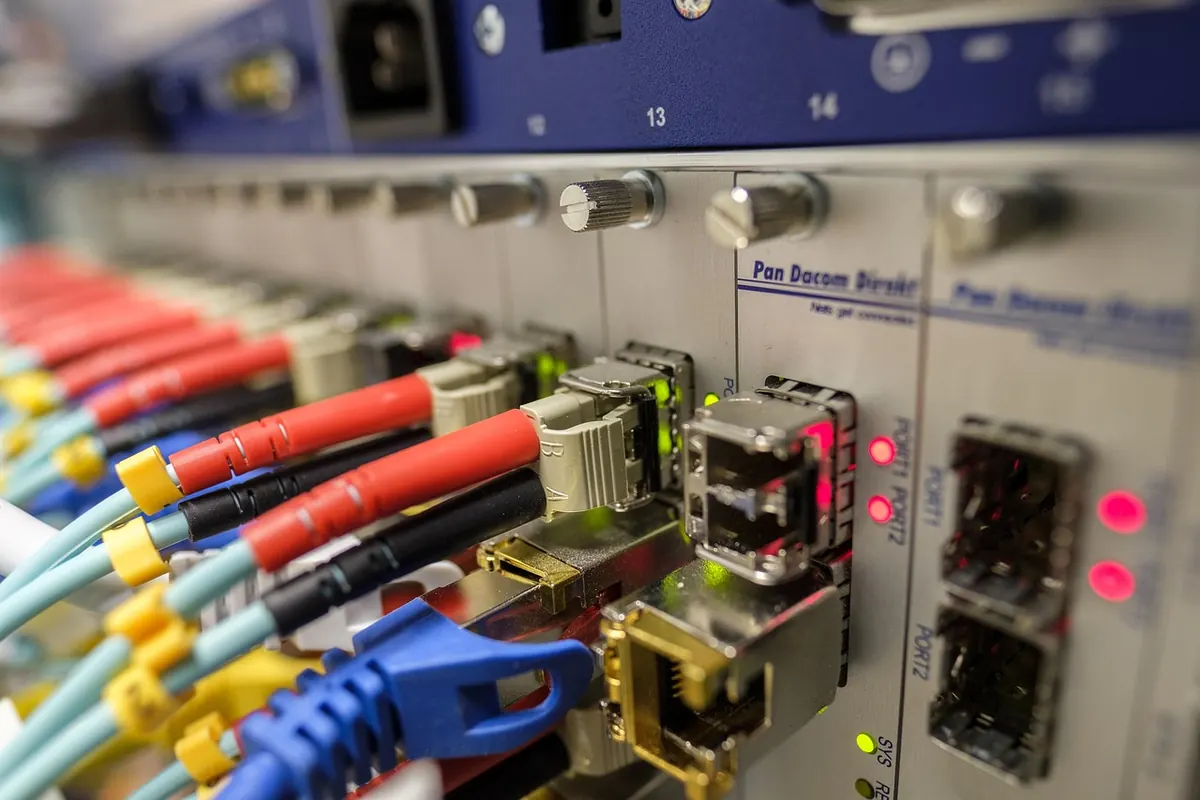
Photo: Peggy_Marco / Pixabay